

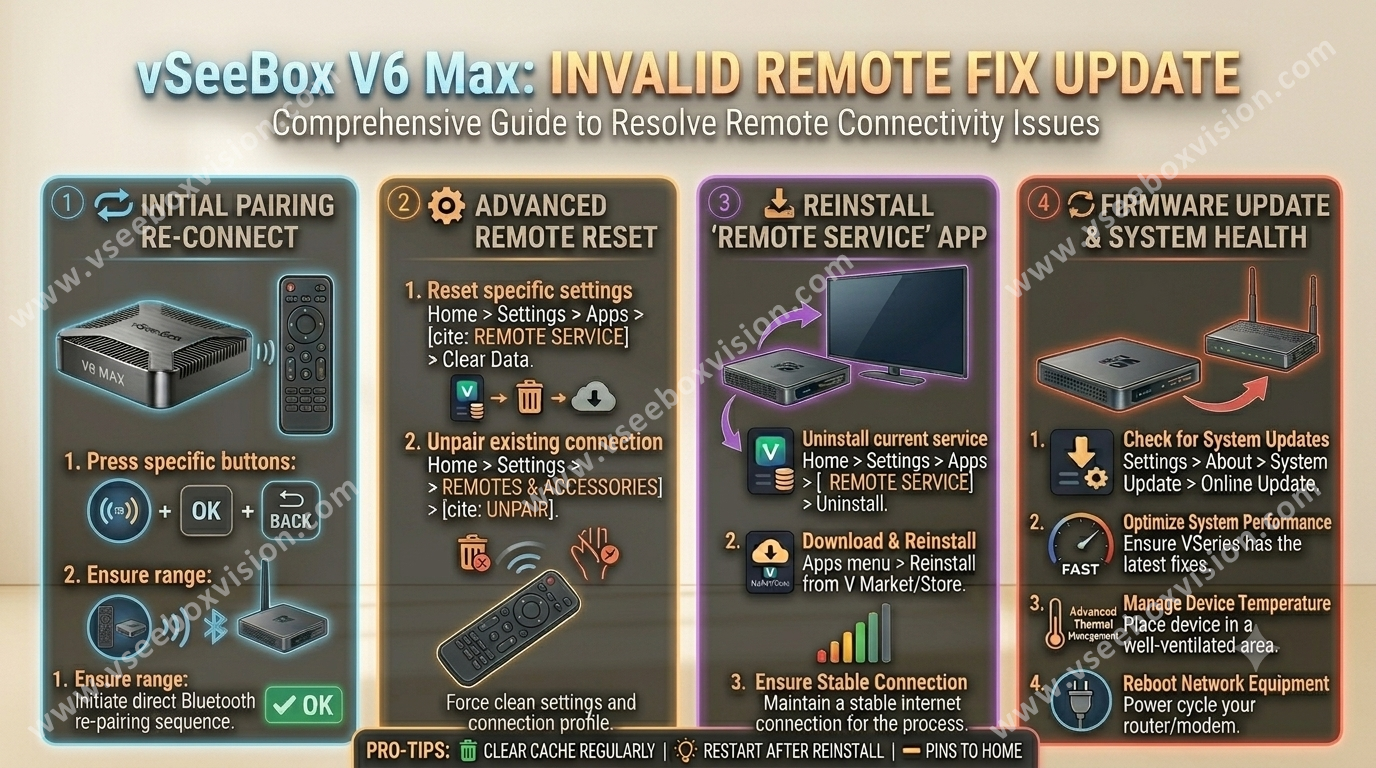
- Accessing Settings: From the main home screen, the user navigates through the menu to System settings.
- Navigating to Update Options: Within the settings, the user goes to Device control settings, followed by More Settings, and then selects Bluetooth OTA.
- Performing the Upgrade:
- The system displays the Connected Bluetooth Device List, identifying the "vSeeBox Remoter".
- The user initiates the "BleOTA" update, which completes the "Installing" and "Done" phases.
- The system prompts the user to place the Bluetooth remote near the box to perform the final OTA upgrade.
- The upgrade process progresses through the stages of Initializing, Start, Upgrading, and finally Finish.
Share:
How to Fix vSeeBox Apps Not Working?-Clear Cache, Reinstall or Update Guide
How to Stop Buffering or Freezing on vSeeBox?