

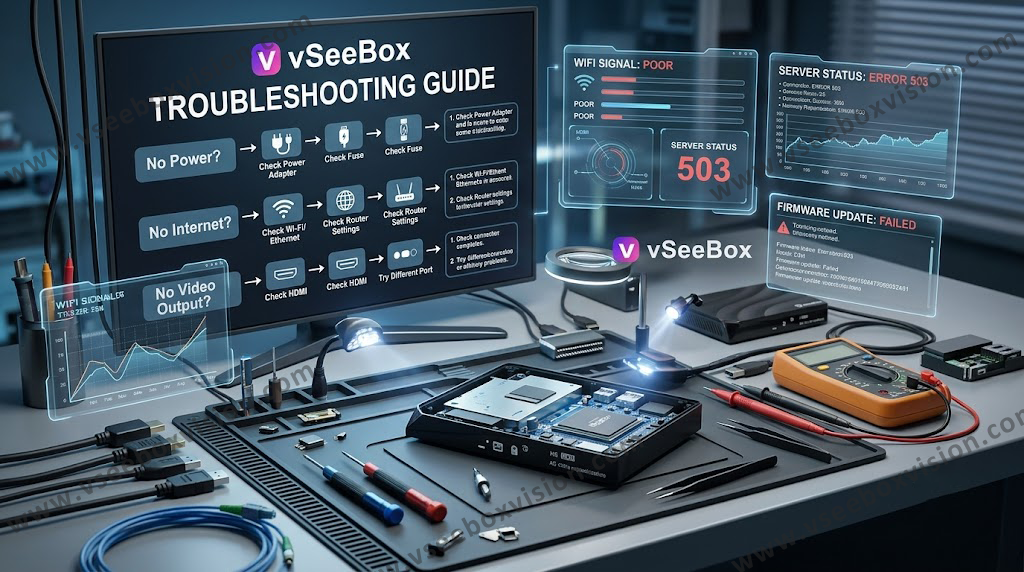
Situation 1: If you are connecting vSeeBox with WiFi network
Step 1
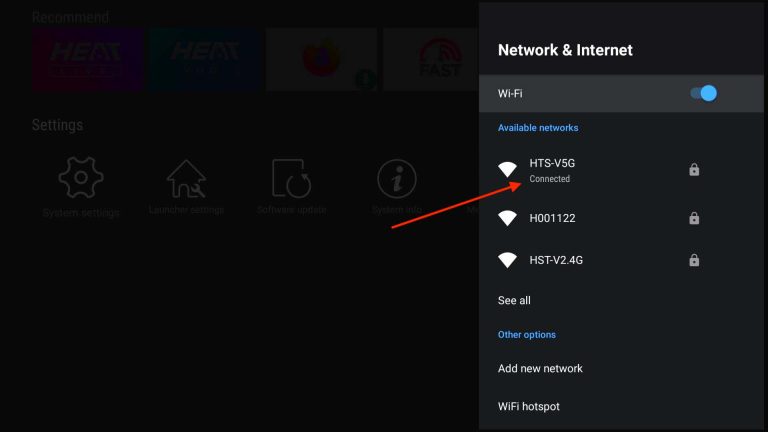
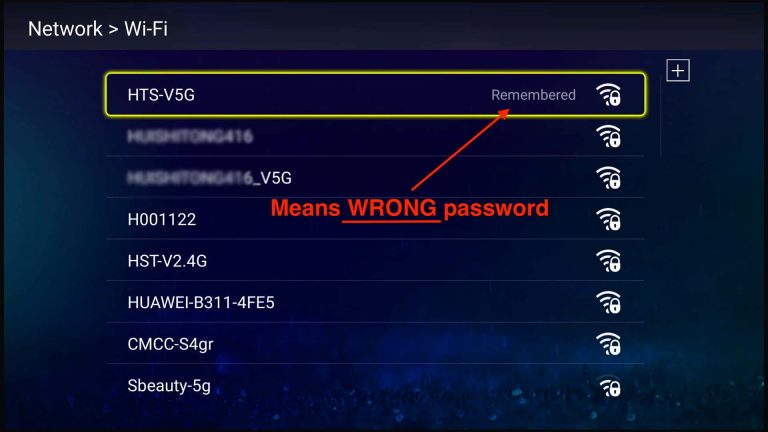
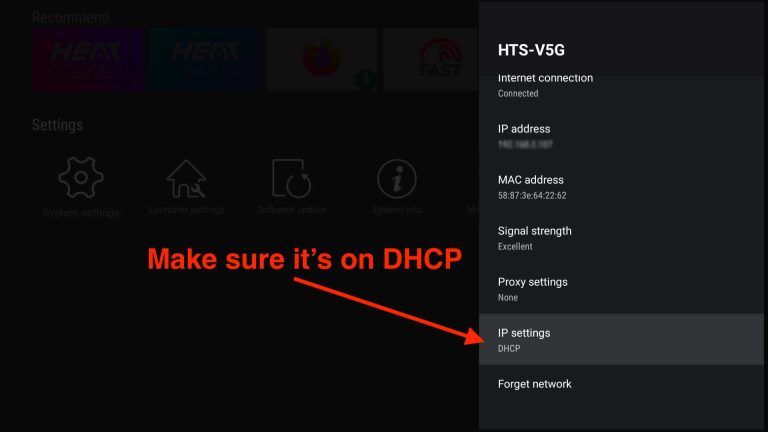
– Open settings and check if the network is connected successfully, it will indicate [Connected] under the network name. If it indicates [Remembered], it means the WiFi password is wrong, please click into the network, select Forget network and connect again.
Step 2
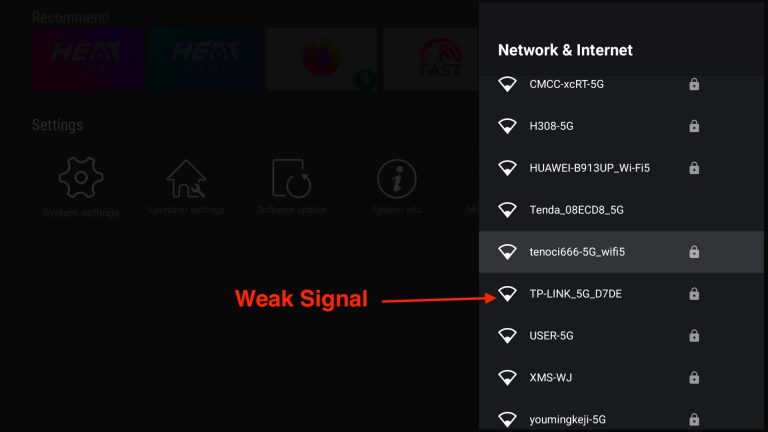
– Check the strength of the WiFi signal. If the WiFi icon is displayed as white color fully filled, it is an excellent strength. If the WiFi icon is displayed as white little or half in white, it’s relatively weak. Please locate your vSeeBox as nearer as possible to your WiFi router. Please also note that WiFi strength would weaken passing through walls or other obstacles;
– Make sure the IP setting is in “DHCP”
Step 3
– Open apps like YouTube and see if it works;
– Open the “Fast” app on the Home screen to check your internet speed. We recommend a minimum 8 Mbps network for smooth streaming.
If you tried the above steps and still does not work
– Reboot your router/modem;
– Please try to connect with Ethernet hardware. We recommend an Ethernet network as it usually provides a stable and fast network transmission;
– Please try with other networks or your mobile hotspot network. You can also ask if your neighbor can help you with their network for testing.
Situation 2: If you are connecting vSeeBox with Ethernet
Step
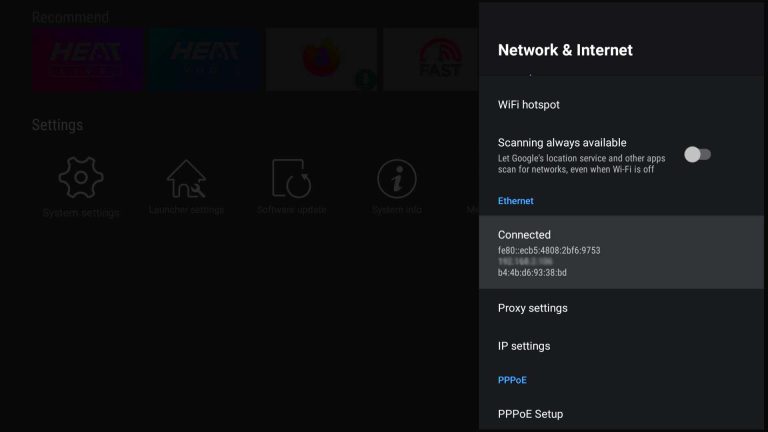
– Open settings and check if the network is connected successfully, it will indicate [Connected] with details IPv6, IP address and vSeeBox MAC ID;
– Make sure the IP setting is in “DHCP”;
– Close the WiFi network if you are connecting WiFi previously;
– Open apps like YouTube and see if it works;
– Open the “Fast” app on the Home screen to check your internet speed
If you tried the above steps and still does not work
– Please check the cable and see if it plugs firmly both on the vSeeBox and your router/modem;
– Check if it works under WiFi network.
Situation 3: Perform a Mobile Hotspot Test
-
Turn on the mobile hotspot on your cell phone.
-
Try connecting the vSeeBox to your phone's hotspot.
-
If it connects to your hotspot: The vSeeBox hardware is working fine; your home router or Internet Service Provider (ISP) is blocking the device or has strict firewall/security rules.
-
If it fails to connect to the hotspot: The issue is local to the box's network settings or network antenna.
Situation 4: Power Cycle Your Network & Box
-
Unplug the power cables for your vSeeBox, Wi-Fi router, and modem.
-
Wait 60 seconds.
-
Plug the modem and router back in first, waiting 2 minutes for all lights to stabilize.
-
Plug the vSeeBox back in and attempt connection.
Situation 5: All The Above Tests Are Invalid
Please apply for exchange: click exchange
Share:
How to Stop Buffering or Freezing on vSeeBox?
VSeeBox V6 Plus Remote Control Setup (Full Guide) 2026