
Setup Guide

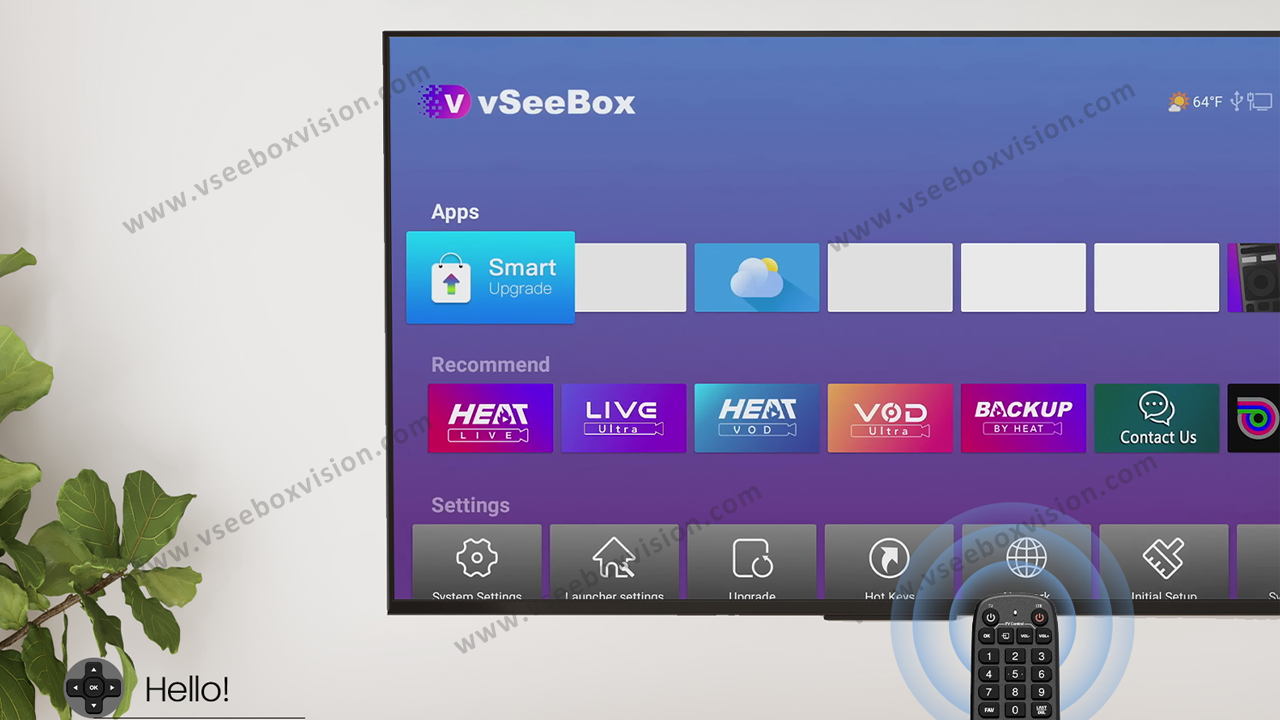
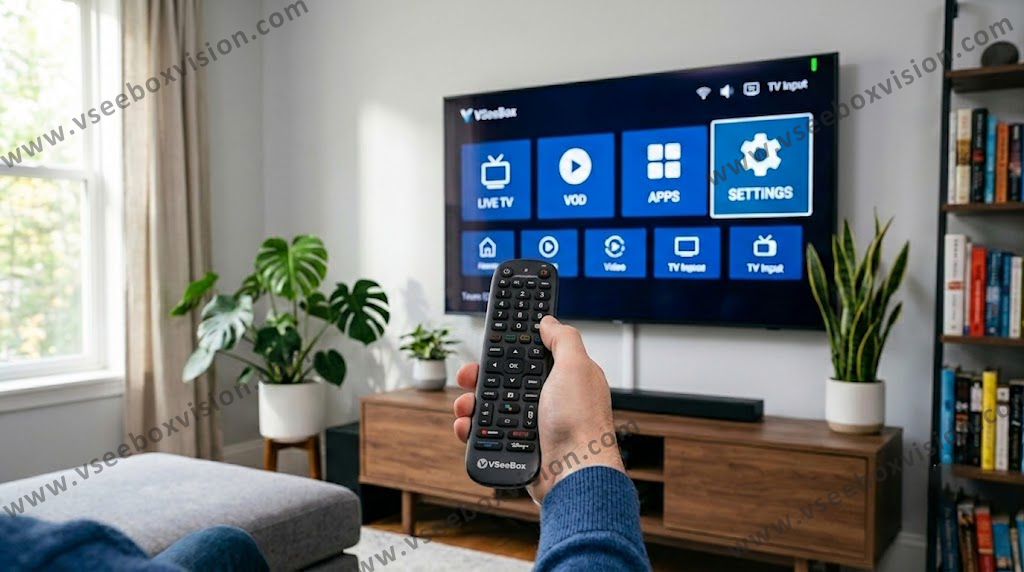
To control your vSeeBox with your TV remote, go to Settings Remote & Accessories on your vSeeBox, select “Pair Remote,” then hold your vSeeBox remote

How to Connect Your TV Remote to vSeeBox (2026 Setup Guide)
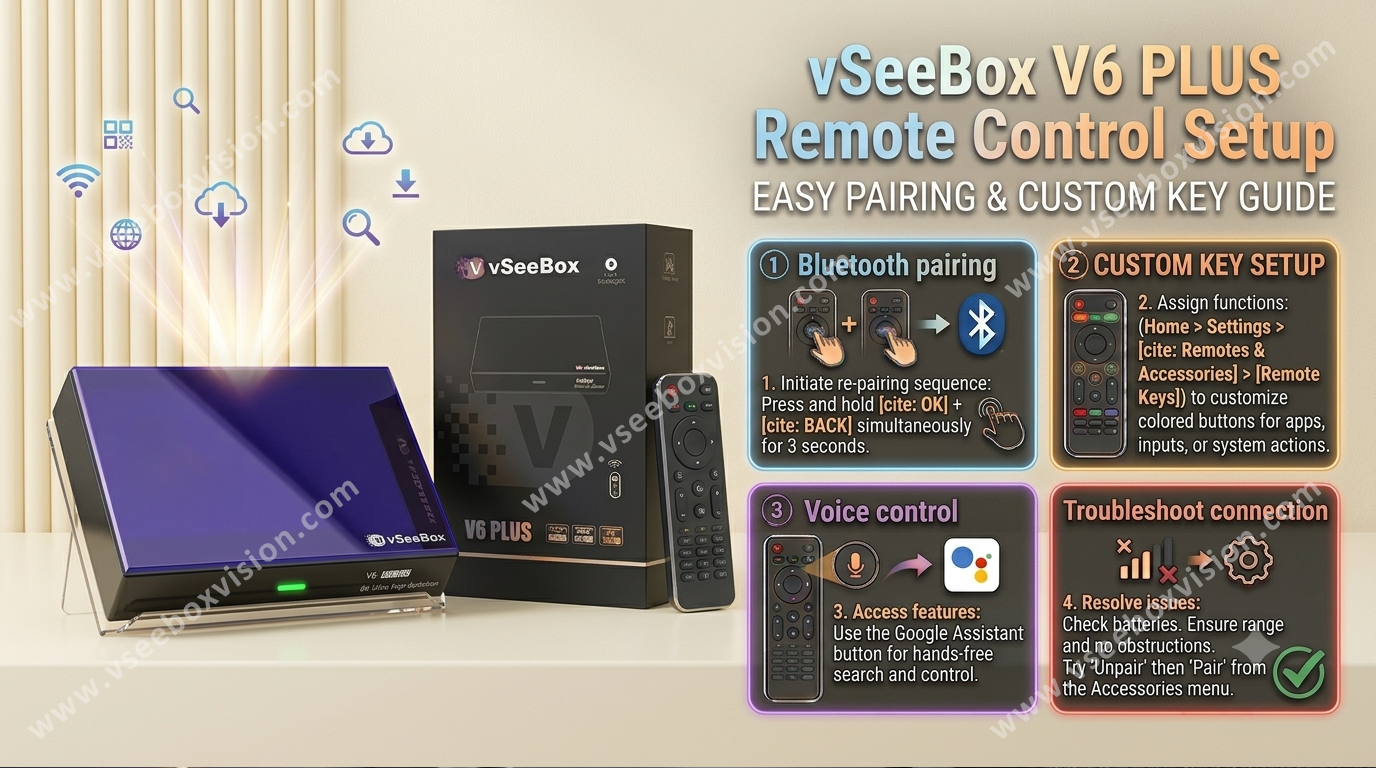
If you want to control both your TV and vSeeBox with one remote, this step-by-step guide will show you how to pair your TV remote with your vSeeBox remote in just a few minutes. A detailed instructional video above that visually...

Read moreabout How to Connect Your TV Remote to vSeeBox (2026 Setup Guide)

VSeeBox V6 Plus Remote Control Setup (Full Guide) 2026
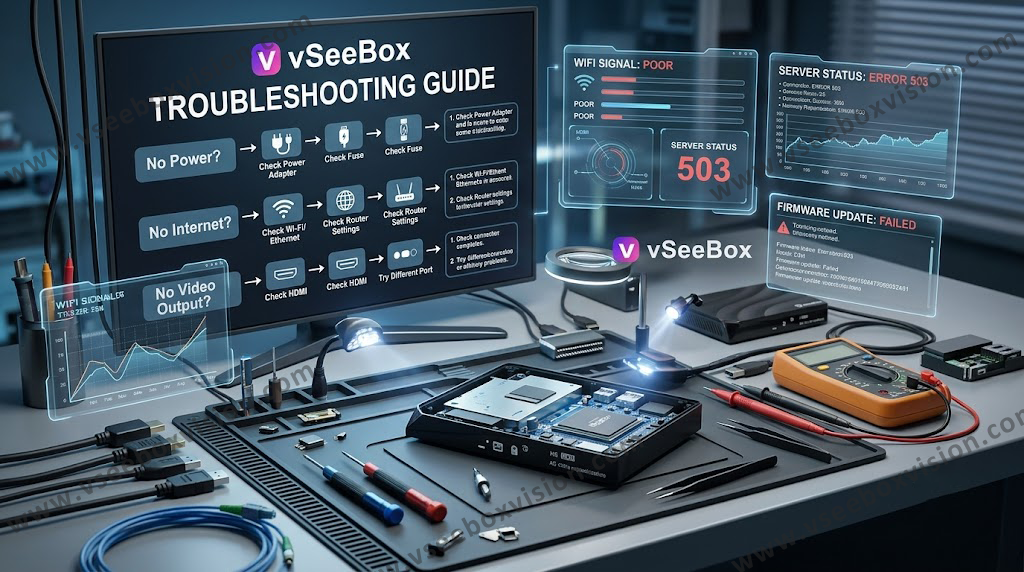
VSeeBox V6 Plus Remote Control Setup (Full Guide) 2026

Navigate to Settings: Ensure your vSeeBox is powered on and at the home screen. Navigate to System Settings (usually in the third row of icons). Manage Remotes: Select Remotes & Accessories. If a remote is already paired, select it and...

Read moreabout VSeeBox V6 Plus Remote Control Setup (Full Guide) 2026

If your vSeeBox has network issues, first restart the router and vSeeBox, preferably connecting via Ethernet or 5GHz Wi‑Fi for stable streaming.

Network Troubleshooting for vSeeBox

Situation 1: If you are connecting vSeeBox with WiFi network Step 1– Open settings and check if the network is connected successfully, it will indicate [Connected] under the network name. If it indicates [Remembered], it means the WiFi password is wrong, please click...

Read moreabout Network Troubleshooting for vSeeBox

Here are steps to stop buffering or freezing on your vSeeBox: check your internet speed, restart your vSeeBox, update to the latest vSeeBox firmware

How to Stop Buffering or Freezing on vSeeBox?
The Complete Guide to: How to stop Buffering / Freezing on your vSeeBox There’s no bigger buzzkill when streaming with an interruption for buffering problems. Here’s the complete guide… General troubleshooting steps for vSeeBox: (1) Clear caches / reboot your vSeeBox. vSeeBox Internet...

Read moreabout How to Stop Buffering or Freezing on vSeeBox?

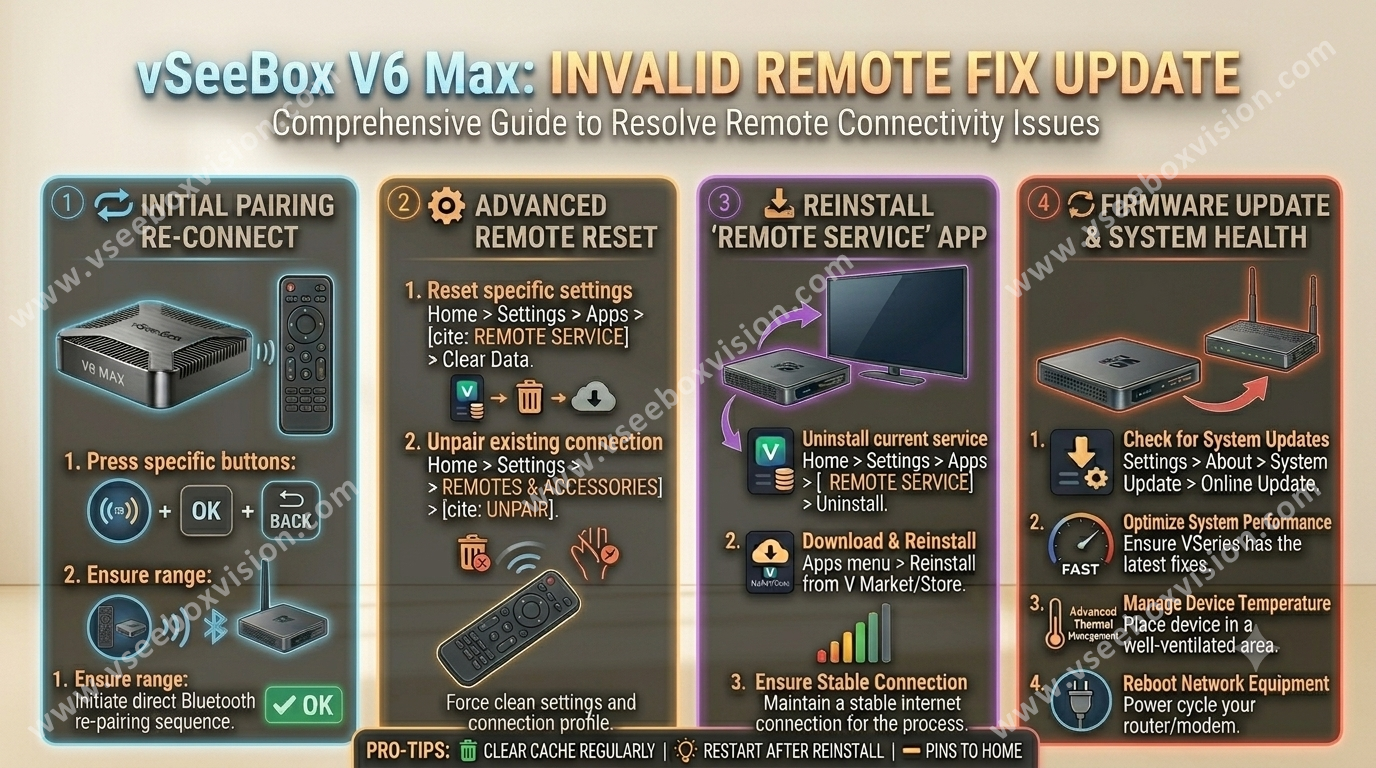
vSeeBox V6 Max: Invalid Remote FiX UPDATE
vSeeBox V6 Max: Invalid Remote FiX UPDATE

Accessing Settings: From the main home screen, the user navigates through the menu to System settings. Navigating to Update Options: Within the settings, the user goes to Device control settings, followed by More Settings, and then selects Bluetooth OTA. Performing...

Read moreabout vSeeBox V6 Max: Invalid Remote FiX UPDATE

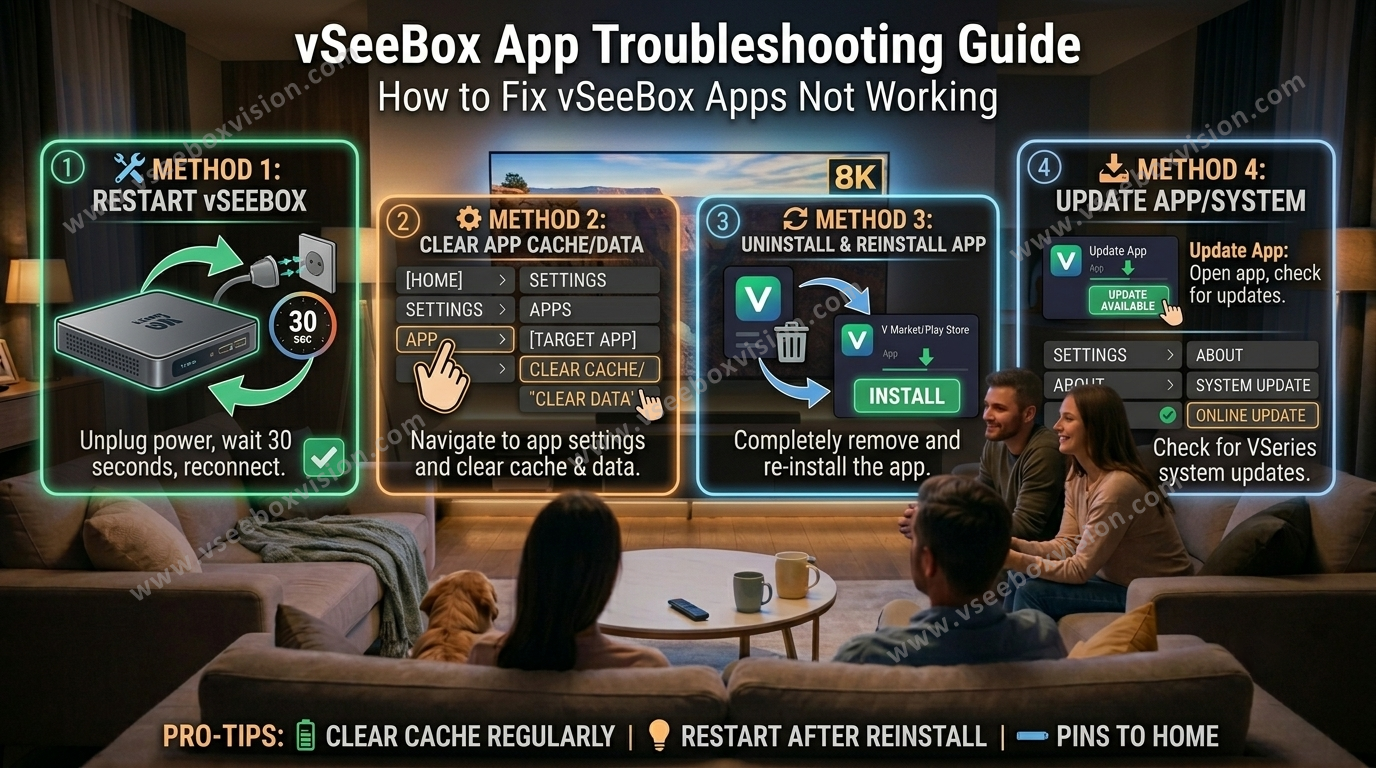
How to Fix vSeeBox Apps Not Working

How to Fix vSeeBox Apps Not Working?-Clear Cache, Reinstall or Update Guide
Step 1: Clear App Cache  Clearing the cache can resolve many performance issues: Navigate to Settings on your vSeeBox. Select Apps. Choose the problematic app (e.g., Heat Live, Heat VOD). Click on Clear Cache. Step 2: Reinstall the App If...

Read moreabout How to Fix vSeeBox Apps Not Working?-Clear Cache, Reinstall or Update Guide

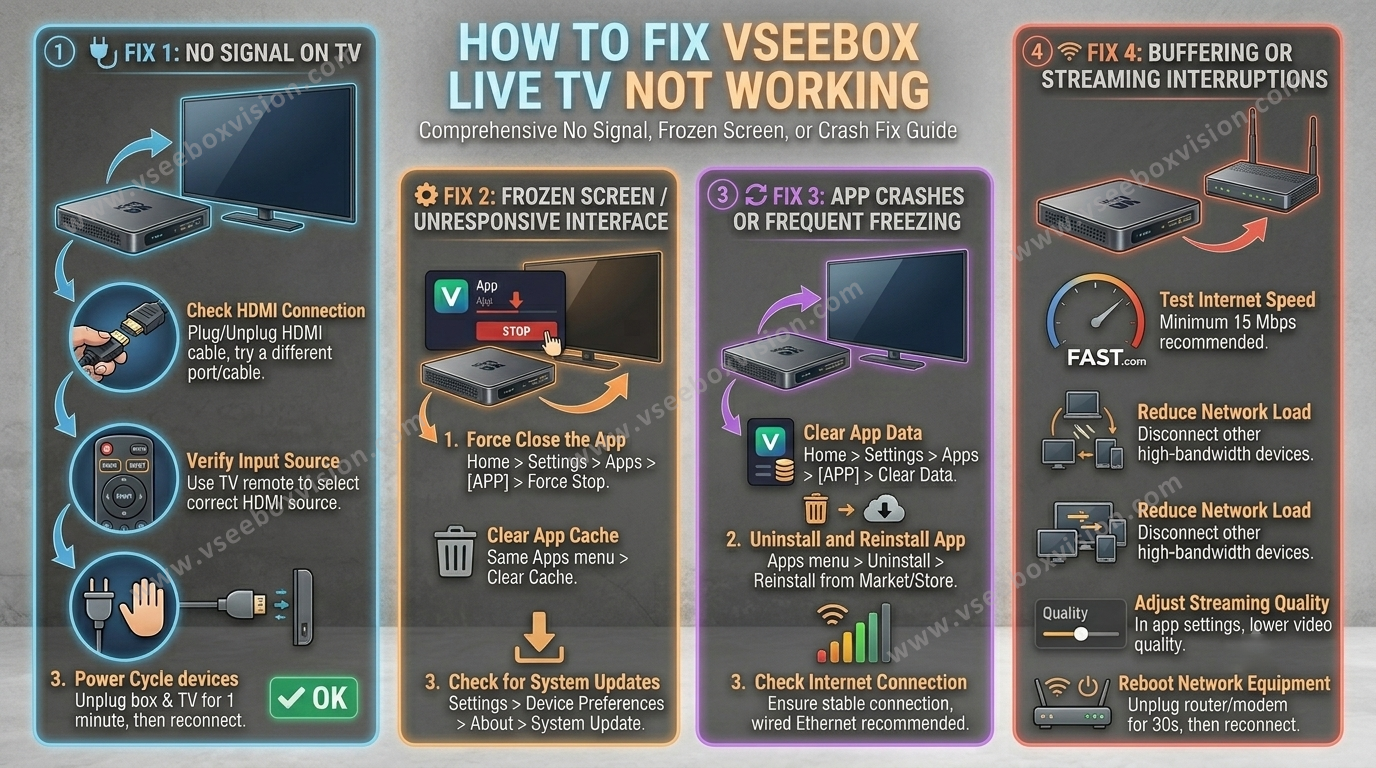
How to Fix vSeeBox Live TV Not Working

How to Fix vSeeBox Live TV Not Working – No Signal, Frozen or Crash Fix
Fix 1: No Signal on TV  Step 1: Check HDMI Connection Ensure the HDMI cable is securely connected to both the vSeeBox and your TV. Try unplugging and replugging the HDMI cable at both ends. Test with a different HDMI...

Read moreabout How to Fix vSeeBox Live TV Not Working – No Signal, Frozen or Crash Fix

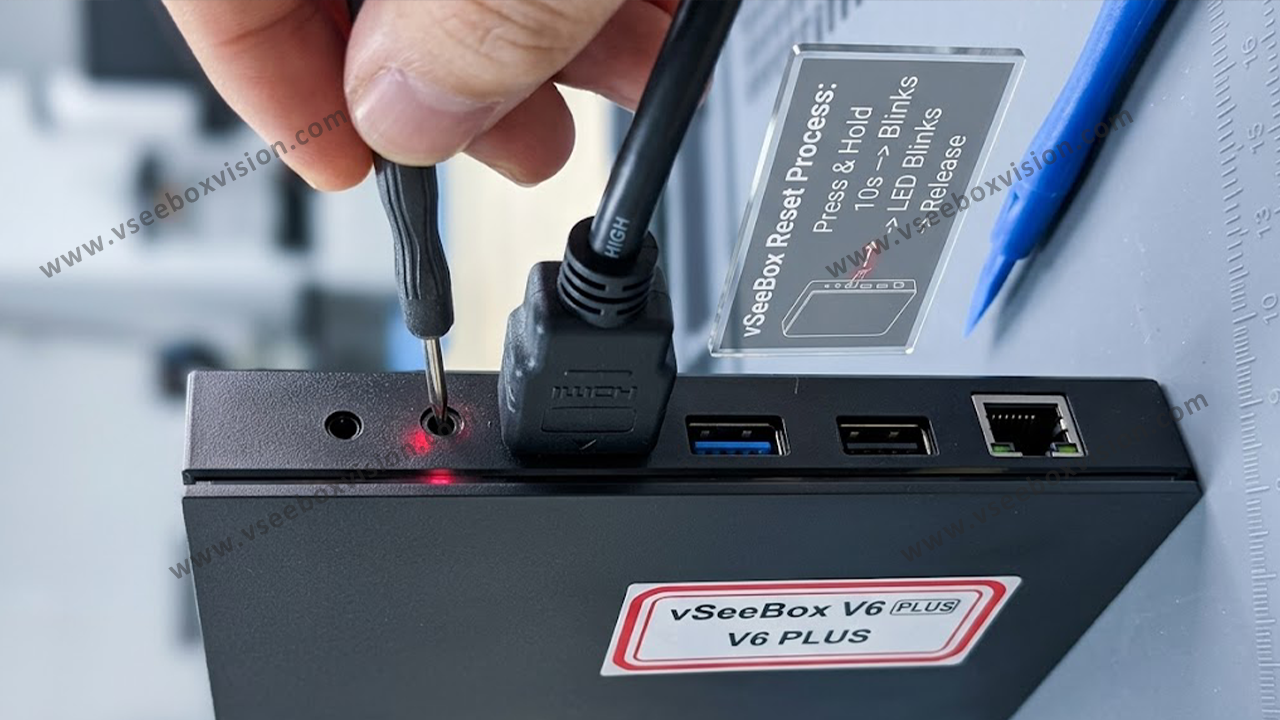
To restore your vSeeBox, go to Settings > System > Reset Options. For a soft reset, choose "Restart vsee Device"—this keeps your data and apps.

vSeeBox Reset Key System Restore Operation Guide 2025
Encountering persistent glitches, slow performance, or apps that won’t launch on your vSeeBox V3 Plus/V5 Pro/V6 Pro/V6 Max/V6 Plus? A factory reset via Android Recovery Mode can clear corrupted data and restore your device to its original stability, often eliminating...

Read moreabout vSeeBox Reset Key System Restore Operation Guide 2025

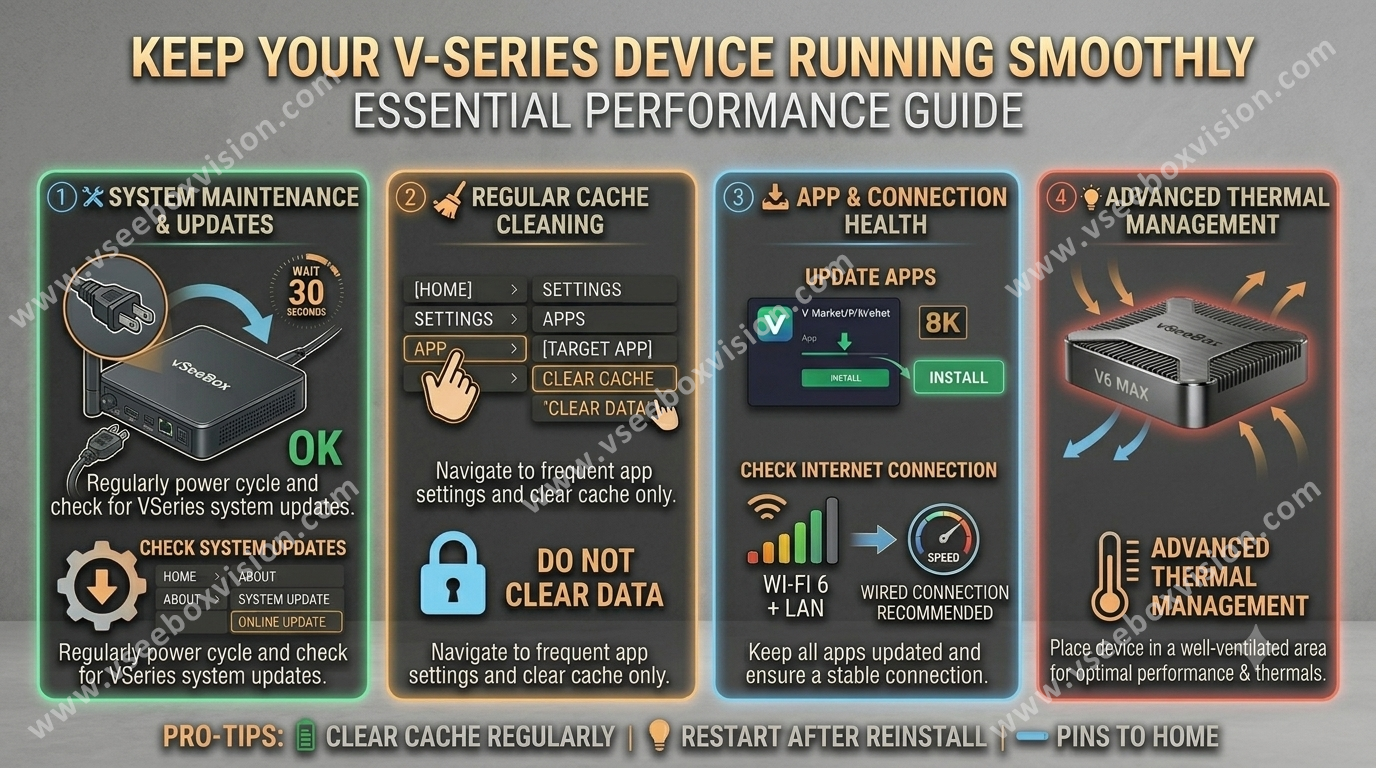
Keeping the vSeeBox Running Smoothly

Keeping the vSeeBox Running Smoothly

1. Manually Updating the Launcher  To ensure your box is running the latest software and that all applications are correctly updated: Action: When you reach the home screen, navigate to Launcher Settings. Step: Select Update Launcher. Why: While the system...

Read moreabout Keeping the vSeeBox Running Smoothly